
AWS Lambda has introduced Lambda Web Functions, a new way to run HTTP applications without converting them into traditional Lambda event handlers.
In this tutorial, we'll build and deploy a minimal REST API using Express.js, TypeScript, and esbuild. We'll start by creating the application, bundle it into a single JavaScript file, and then move on to deploying it on AWS Lambda Web Functions.
The goal is to keep the development experience familiar while producing a lightweight deployment artifact without having to upload the entire node_modules directory.
Step 1: Create an Express.js API using TypeScript
We'll begin by setting up a basic Express.js application with a few dummy endpoints. We'll use TypeScript for type safety and esbuild to bundle the application and its dependencies.
If you don't want to create the application yourself, you can use the complete source code from the GitHub repository and continue to the next section.
1.1 Initialize the project
Create a directory for the application and initialize an npm project.
mkdir express-ts-api
cd express-ts-api
npm init -y
Install Express.js as a runtime dependency and add TypeScript, its type definitions, and esbuild as development dependencies.
npm install express
npm install -D typescript @types/node @types/express esbuild
Here is the purpose of each dependency:
Express.js: Handles HTTP requests and API routing.
TypeScript: Provides static typing during development.
@types/node and @types/express: Provide TypeScript definitions for Node.js and Express.
esbuild: Transpiles TypeScript and bundles the application and its dependencies into a JavaScript file.
1.2 Configure the project
Create a tsconfig.json file in the project root.
{
  "compilerOptions": {
    "target": "ES2022",
    "module": "ESNext",
    "moduleResolution": "Bundler",
    "strict": true,
    "esModuleInterop": true,
    "skipLibCheck": true,
    "noEmit": true
  },
  "include": ["src/**/*.ts"]
}
The noEmit option tells TypeScript to perform type checking without generating JavaScript files. We'll use esbuild for the actual compilation and bundling.
Next, update the scripts section of package.json to include the following commands. Keep the dependencies generated by npm as they are.
{
  "scripts": {
    "typecheck": "tsc",
    "build": "npm run typecheck && esbuild src/index.ts --bundle --platform=node --target=node24 --outfile=dist/index.js",
    "start": "node dist/index.js"
  }
}
The build command first checks the TypeScript code and then bundles the application for Node.js 24. esbuild bundles imported JavaScript dependencies by default unless they are marked as external. Node.js built-in modules remain external and are provided by the runtime.
1.3 Create the Express.js application
Create the following directory structure:
express-ts-api/
├── src/
│   └── index.ts
├── package.json
├── package-lock.json
└── tsconfig.json
Create src/index.ts with the following implementation.
import express, { Request, Response } from "express";

const app = express();

app.use(express.json());

interface User {
  id: number;
  name: string;
  email: string;
}

const users: User[] = [
  {
    id: 1,
    name: "John Doe",
    email: "john@example.com"
  },
  {
    id: 2,
    name: "Jane Doe",
    email: "jane@example.com"
  }
];

// GET /
app.get("/", (_req: Request, res: Response) => {
  res.json({
    message: "Express TypeScript API is running"
  });
});

// GET /api/health
app.get("/api/health", (_req: Request, res: Response) => {
  res.json({
    status: "healthy"
  });
});

// GET /api/users
app.get("/api/users", (_req: Request, res: Response) => {
  res.json(users);
});

// POST /api/echo
app.post("/api/echo", (req: Request, res: Response) => {
  res.json({
    received: req.body
  });
});

// Start the HTTP server
const endpoint = process.env.AWS_LAMBDA_HTTP_ENDPOINT ?? "127.0.0.1:3000";

const separatorIndex = endpoint.lastIndexOf(":");
const host = endpoint.substring(0, separatorIndex);
const port = Number(endpoint.substring(separatorIndex + 1));

app.listen(port, host, () => {
  console.log(`API listening on http://${host}:${port}`);
});
This implementation exposes four simple endpoints:
| Method | Endpoint | Description |
|---|---|---|
| GET | / |
Returns a welcome message |
| GET | /api/health |
Returns the API health status |
| GET | /api/users |
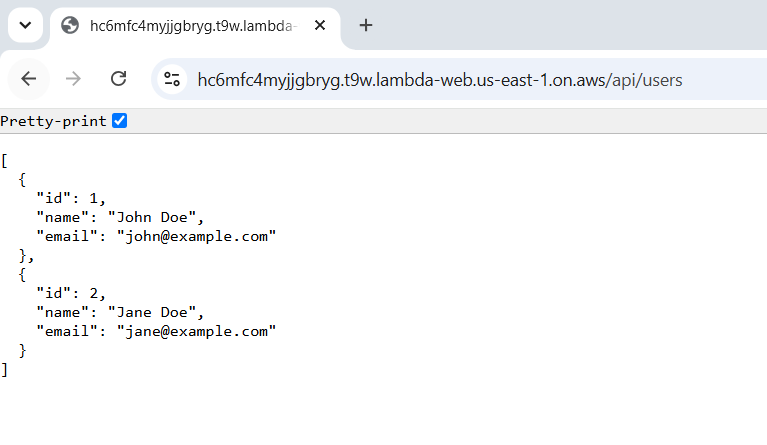
Returns a list of dummy users |
| POST | /api/echo |
Returns the JSON request body |
The in-memory user list is only for demonstration. Data will reset when the process restarts, so a real application should use a persistent data store.
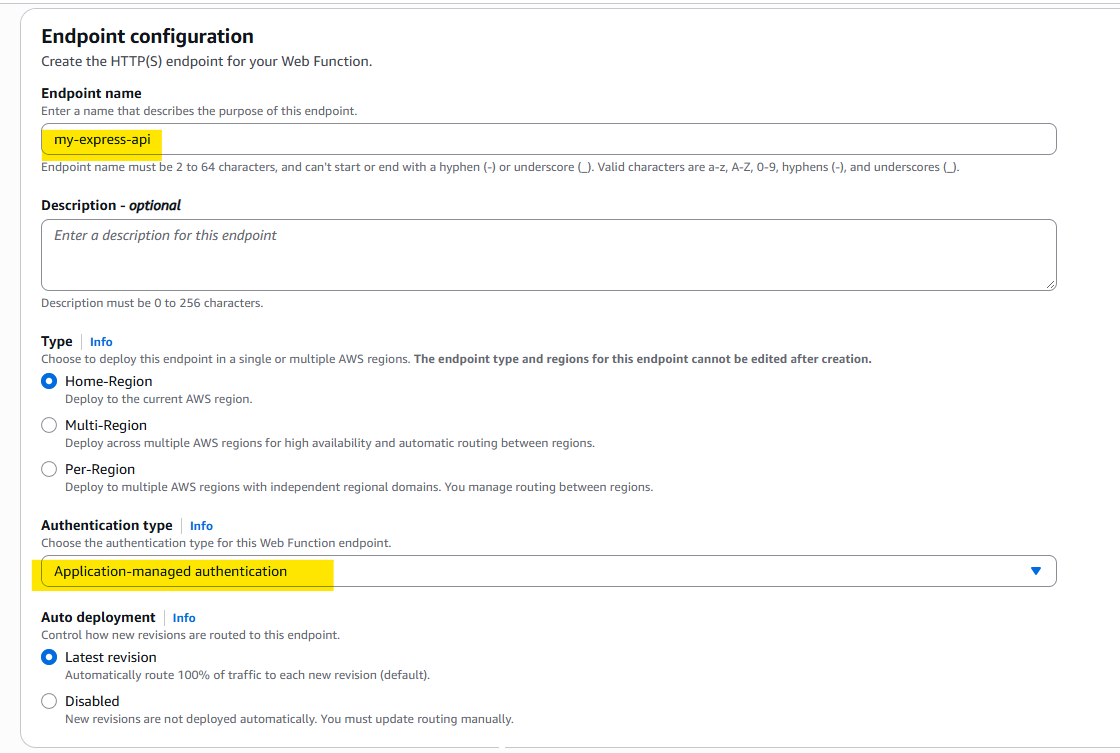
Notice that the server reads AWS_LAMBDA_HTTP_ENDPOINT. AWS Lambda Web Functions provides this environment variable, which specifies the host and port on which the HTTP server must listen. When running locally, the application defaults to 127.0.0.1:3000.
1.4 Build the application
Run the following command:
npm run build
This performs two operations:
Runs TypeScript type checking.
Uses esbuild to bundle the application and its JavaScript dependencies into
dist/index.js.
Your project will now have the following structure:
express-ts-api/
├── src/
│   └── index.ts
├── dist/
│   └── index.js
├── node_modules/
├── package.json
├── package-lock.json
└── tsconfig.json
The important file is dist/index.js. It contains the bundled application code and its bundled npm dependencies, so you don't need to include the entire node_modules directory in the deployment package.
For this minimal application, the deployment artifact can be just the generated JavaScript file.
1.5 Run and test the API locally
Start the server:
npm start
The API should be available at http://127.0.0.1:3000.
Test the health endpoint:
curl http://127.0.0.1:3000/api/health
Expected response:
{
  "status": "healthy"
}
Fetch the list of users:
curl http://127.0.0.1:3000/api/users
1.6 Verify the deployment artifact
You can also verify that the bundled application runs without relying on the source directory:
node dist/index.js
Because esbuild has bundled the JavaScript dependencies, the generated application does not need to resolve Express from node_modules at runtime.
2. Prepare the deployment package
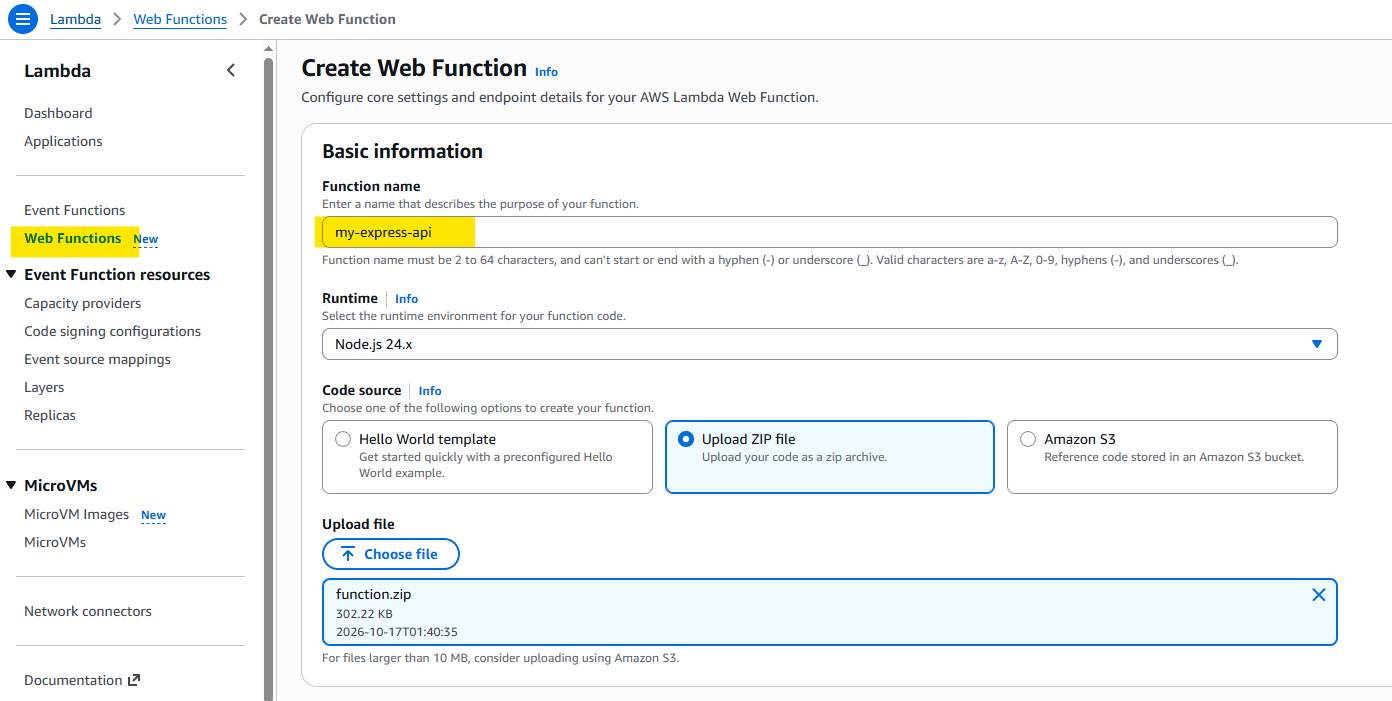
AWS Lambda Web Functions supports multiple options for providing your deployment package, including uploading a ZIP file directly or storing it in an Amazon S3 bucket.
For simplicity, we'll create a ZIP file and upload it directly in the next section.
AWS Lambda Web Functions loads index.js from the package root by default. As described in the AWS documentation:
By default, Lambda loads
index.jsat the package root as the entry file and runs it to start your HTTP server. To use a different name or path (for example,dist/index.js), set theAWS_LAMBDA_NODEJS_ENTRYPOINTenvironment variable.
Our build generates dist/index.js, so copy it to the package root and create the ZIP file:
cp dist/index.js index.js
zip function.zip index.js
The resulting package contains only the bundled application, without the node_modules directory.
function.zip
└── index.js
We'll upload function.zip directly when creating our Lambda Web Function in the next section.
3. Deploy the API and Configure the HTTPS Endpoint
Create an AWS Lambda Web Function by uploading the deployment ZIP file.
Configure the HTTPS endpoint to make the API accessible over the internet.
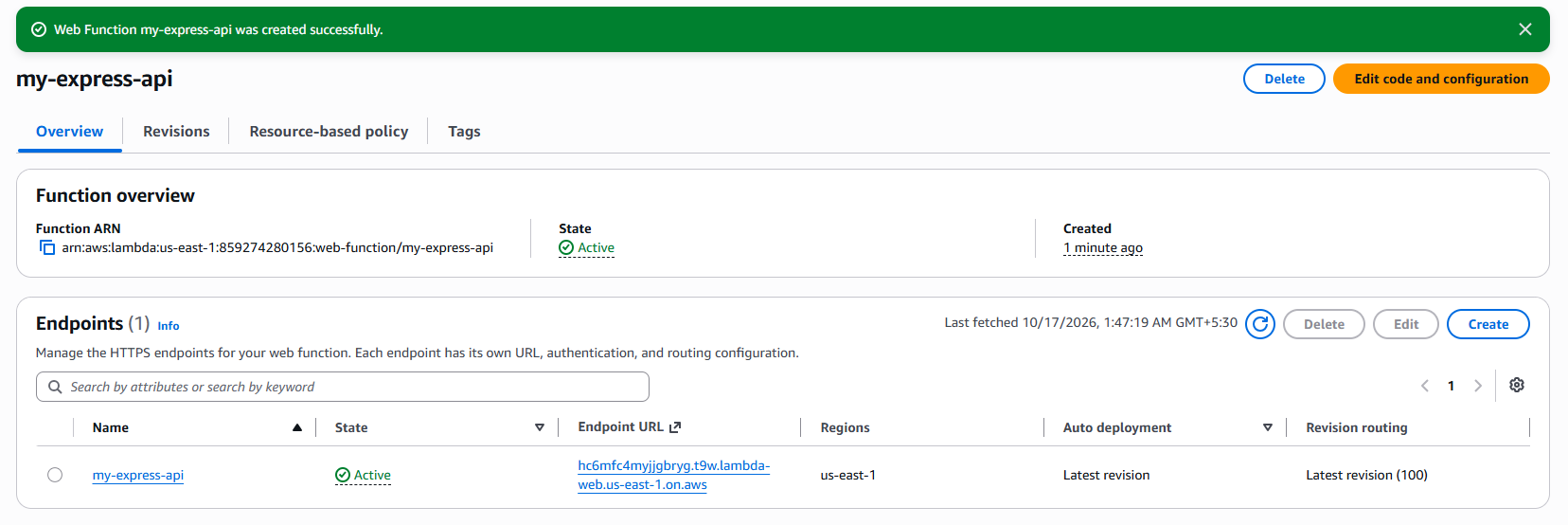
Confirm that the Web Function is deployed successfully and the endpoint is available.
Invoke the API endpoint and verify that it returns the expected JSON response.
Conclusion
AWS Lambda Web Functions offer a new way to deploy Node.js applications using familiar web frameworks such as Express.js, without requiring Lambda-specific adapters. In this tutorial, we built a minimal Express.js API with TypeScript, bundled it using esbuild, and deployed it with an HTTPS endpoint.
This approach keeps the deployment package lightweight while letting you develop and run your API like a regular Node.js application.
To learn more, check out these official resources:
You can also find the complete application source code here: GitHub repository.
I hope this walkthrough helps you get started with deploying your own APIs on AWS Lambda Web Functions!