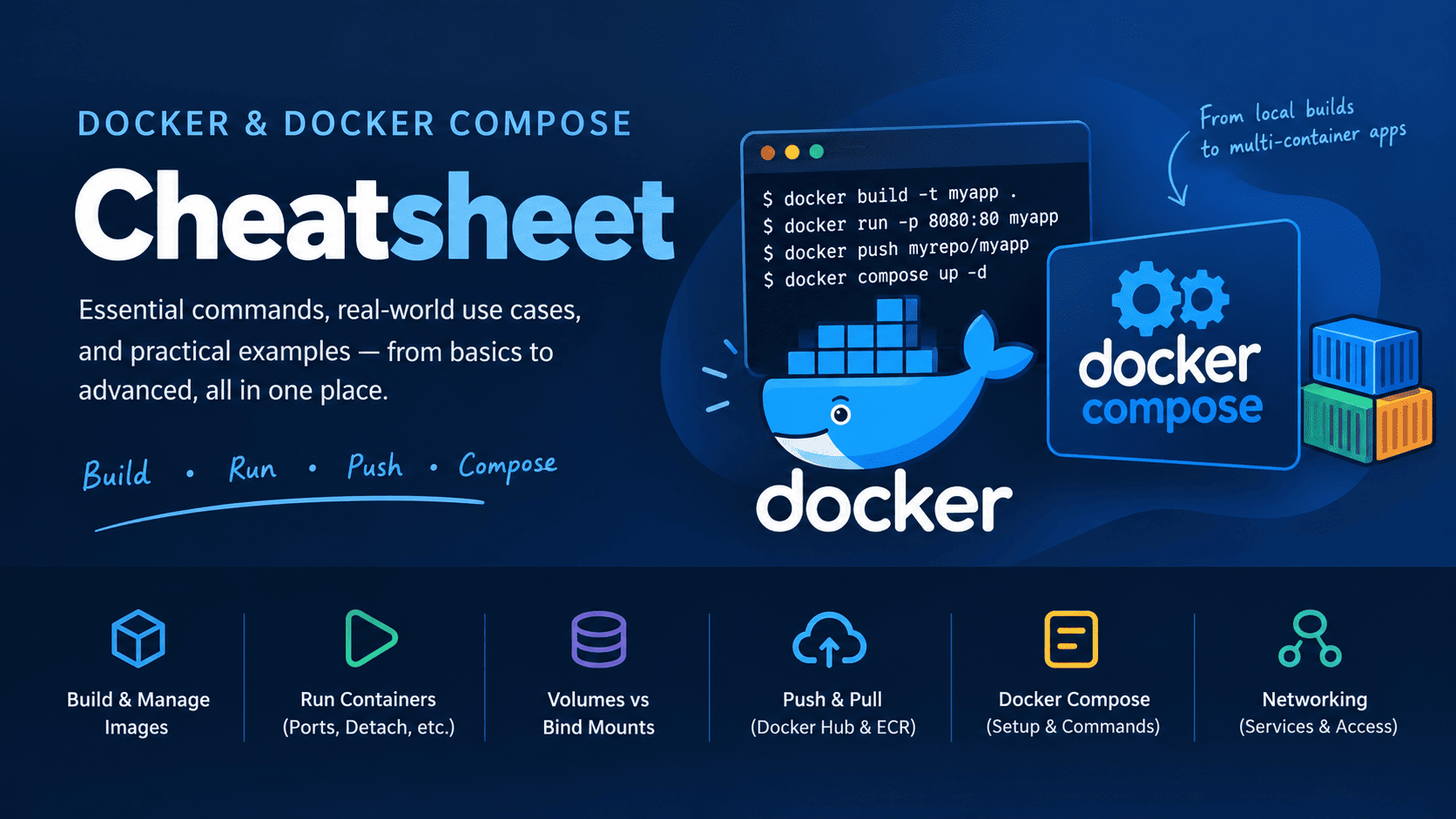
A practical, copy-paste-friendly guide for the Docker commands you are most likely to use in day-to-day development.
The progression is intentional:
Image → Container → Registry → Volumes → Compose → Networking
The examples use a simple application called myapp.
1. Docker Mental Model
Before memorizing commands, keep these four concepts clear:
Dockerfile
   │
   │ docker build
   ▼
Docker Image
   │
   │ docker run
   ▼
Docker Container
   │
   │ docker push / pull
   ▼
Container Registry
   │
   ├── Docker Hub
   └── Amazon ECR
Image
An image is the packaged application.
It contains:
- Application code
- Runtime
- Dependencies
- OS libraries
- Configuration defaults
- Startup command
Example:
myapp:1.0
Container
A container is a running instance of an image.
Image
  │
  ├── Container 1
  ├── Container 2
  └── Container 3
You can create multiple containers from the same image.
Registry
A registry stores images remotely.
Common registries:
Docker Hub
Amazon ECR
GitHub Container Registry
Azure Container Registry
Google Artifact Registry
Docker Image, Repository, and Tag
In containerization ecosystems like Docker, the relationship between an image, a repository, and a tag is structural: a repository is a named collection of image versions, and tags are human-readable aliases used to reference specific images in that repository.
Together, they form a hierarchical structure used to organize, store, and reference container versions.
[ Container Registry ]
       │
       └─── [ Repository ] (e.g., "my-web-app")
                 │
                 ├─── [ Tag: "v1.0" ]   ───► Pointer to Image ID (sha256:abc123...)
                 ├─── [ Tag: "v2.0" ]   ───► Pointer to Image ID (sha256:xyz789...)
                 └─── [ Tag: "latest" ] ───► Pointer to Image ID (sha256:xyz789...)
2. Check Docker Installation
Check Docker version
docker --version
Examples:
docker --version
docker version
docker version gives more detailed client/server information.
Check whether Docker is running
docker info
Examples:
docker info
docker version
If Docker Desktop or the Docker daemon isn't running, commands such as docker build and docker run will fail.
3. Docker Build Context
This is one of the most important Docker concepts.
Suppose your project looks like:
myapp/
├── Dockerfile
├── MyApp.csproj
├── Program.cs
└── src/
You normally run:
docker build -t myapp:latest .
The final . is the build context.
It means:
Send the current directory to Docker as the build context.
So normally:
cd myapp
docker build -t myapp:latest .
Why does context matter?
Your Dockerfile can only COPY files that are inside the build context.
For example:
COPY . .
means:
Build context
     │
     ├── Dockerfile
     ├── Program.cs
     ├── MyApp.csproj
     └── src/
Docker cannot normally do:
COPY ../some-file .
if some-file is outside the build context.
Rule of thumb
Run docker build from the directory you want to use as the context.
Or explicitly specify the context:
docker build -t <image-name>:<tag> <context>
Examples:
docker build -t myapp:latest .
docker build -t myapp:1.0 ./src
4. Build a Docker Image Locally
The most common command:
docker build -t <image-name>:<tag> <context>
Examples:
docker build -t myapp:latest .
docker build -t myapp:1.0 .
The image is created in your local Docker daemon.
You don't need to push it anywhere.
You can immediately run it:
docker run myapp:latest
5. What Does -t Mean?
-t means tag.
docker build -t myapp:1.0 .
creates:
Repository: myapp
Tag:        1.0
Together:
myapp:1.0
If you don't specify a tag:
docker build -t myapp .
Docker normally treats it as:
myapp:latest
Recommended
Explicitly specify the tag:
docker build -t myapp:1.0 .
6. -d Is NOT Used With docker build
A common confusion:
docker build
creates an image.
docker run
creates/starts a container.
-d is primarily used with docker run to run a container in detached/background mode.
So:
docker build -d ...
is not what you normally want.
Instead:
docker run -d myapp:latest
7. List Local Docker Images
docker images
Examples:
docker images
docker image ls
Example output:
REPOSITORY   TAG       IMAGE ID       CREATED       SIZE
myapp        latest    abc123         2 mins ago    150MB
myapp        1.0       def456         5 mins ago    150MB
nginx        latest    xyz789         2 days ago    190MB
8. Inspect an Image
docker image inspect <image>
Examples:
docker image inspect myapp:latest
docker image inspect nginx:latest
Useful when you want to inspect:
- Entrypoint
- Environment variables
- Architecture
- Layers
- Metadata
- Working directory
9. Remove a Local Image
docker image rm <image>
Examples:
docker image rm myapp:latest
docker image rm nginx:latest
If a container is still using the image, Docker may refuse to remove it.
10. Run a Container From a Local Image
Basic command:
docker run <image>
Examples:
docker run myapp:latest
docker run nginx:latest
This creates a new container from the image.
11. Run Container in Background
Use -d:
docker run -d <image>
Examples:
docker run -d myapp:latest
docker run -d nginx:latest
-d means:
Detached mode
Your terminal is returned immediately while the container keeps running.
12. Give the Container a Name
docker run --name <container-name> <image>
Examples:
docker run --name myapp-container myapp:latest
docker run --name web nginx:latest
This makes subsequent commands easier:
docker logs myapp-container
instead of dealing with an automatically generated container name.
13. Port Mapping: -p
This is another very important Docker concept.
Suppose your application listens inside the container on:
8080
You want to access it from your machine on:
5000
Use:
docker run -p <host-port>:<container-port> <image>
Example:
docker run -p 5000:8080 myapp:latest
The mapping is:
Your computer
localhost:5000
      │
      │ Docker port mapping
      ▼
Container
port 8080
So you access:
http://localhost:5000
Another example
docker run -p 3000:8080 myapp:latest
Means:
localhost:3000 → container:8080
Important
The left side is the host port.
The right side is the container port.
-p HOST:CONTAINER
14. -p vs EXPOSE
You might see this in a Dockerfile:
EXPOSE 8080
EXPOSE documents the port the application uses inside the container.
It does not automatically make the application available on your host.
You still need:
docker run -p 5000:8080 myapp
Think:
EXPOSE
    ↓
Documentation / metadata

-p
    ↓
Actual host → container port mapping
15. Run Container With Port and Name
A common development command:
docker run -d --name <container-name> -p <host-port>:<container-port> <image>:<tag>
Examples:
docker run -d --name myapp -p 5000:8080 myapp:latest
docker run -d --name api -p 8080:8080 myapi:1.0
16. Can Docker Run an Image Without Pulling It Manually?
Yes.
You don't have to run:
docker pull
before every docker run.
If you execute:
docker run nginx:latest
Docker checks whether the image is available locally.
If it isn't, Docker attempts to pull it from the registry associated with the image name.
For example:
docker run nginx:latest
normally pulls from:
Docker Hub
because nginx is shorthand for:
docker.io/library/nginx
Explicit registry example
docker run docker.io/library/nginx:latest
docker run ghcr.io/<owner>/<image>:<tag>
docker run <account>.dkr.ecr.<region>.amazonaws.com/<repo>:<tag>
So the image name itself tells Docker where the image belongs.
17. View Running Containers
docker ps
Examples:
docker ps
docker container ls
Only running containers are shown.
18. View All Containers
Including stopped containers:
docker ps -a
Examples:
docker ps -a
docker container ls -a
19. Stop a Container
docker stop <container>
Examples:
docker stop myapp
docker stop nginx
20. Start a Stopped Container
docker start <container>
Examples:
docker start myapp
docker start nginx
Important distinction:
docker run
    ↓
Create + start a NEW container

docker start
    ↓
Start an EXISTING stopped container
21. Restart a Container
docker restart <container>
Examples:
docker restart myapp
docker restart nginx
22. Remove a Container
docker rm <container>
Examples:
docker rm myapp
docker rm nginx
For a running container:
docker rm -f <container>
Examples:
docker rm -f myapp
docker rm -f nginx
23. View Container Logs
docker logs <container>
Examples:
docker logs myapp
docker logs nginx
Follow logs continuously:
docker logs -f <container>
Examples:
docker logs -f myapp
docker logs -f nginx
24. Execute a Command Inside a Running Container
Very useful for debugging.
docker exec -it <container> <command>
Examples:
docker exec -it myapp bash
docker exec -it myapp sh
bash may not exist in lightweight images, while sh usually does.
25. Docker Image Tags
Tags are just references to images.
myapp:latest
myapp:1.0
myapp:1.1
myapp:2026-09-11
You can tag an existing image:
docker tag <source-image> <new-image>:<tag>
Examples:
docker tag myapp:latest myapp:1.0
docker tag myapp:latest myusername/myapp:1.0
This does not copy the entire image.
It creates another tag pointing to the image.
26. Push Image to Docker Hub
First authenticate:
docker login
Examples:
docker login
docker login docker.io
Then tag the image using your Docker Hub username:
docker tag <local-image>:<tag> <dockerhub-username>/<repository>:<tag>
Examples:
docker tag myapp:latest ankushjain/myapp:latest
docker tag myapp:1.0 ankushjain/myapp:1.0
Then push:
docker push <dockerhub-username>/<repository>:<tag>
Examples:
docker push ankushjain/myapp:latest
docker push ankushjain/myapp:1.0
The flow is:
Local image
    │
    │ docker tag
    ▼
Docker Hub image name
    │
    │ docker push
    ▼
Docker Hub
27. Pull Image From Docker Hub
Basic:
docker pull <repository>:<tag>
Examples:
docker pull nginx:latest
docker pull redis:7
Then:
docker images
to verify it exists locally.
28. Amazon ECR
Amazon ECR uses a registry URL similar to:
<account-id>.dkr.ecr.<region>.amazonaws.com
For example:
123456789012.dkr.ecr.ap-south-1.amazonaws.com
A repository might be:
123456789012.dkr.ecr.ap-south-1.amazonaws.com/myapp
29. Create an ECR Repository
If it doesn't already exist:
aws ecr create-repository --repository-name <repository> --region <region>
Examples:
aws ecr create-repository --repository-name myapp --region ap-south-1
aws ecr create-repository --repository-name backend --region us-east-1
30. Authenticate Docker With ECR
First make sure AWS CLI credentials are configured.
aws configure
Then authenticate Docker:
aws ecr get-login-password --region <region> | docker login --username AWS --password-stdin <account-id>.dkr.ecr.<region>.amazonaws.com
Examples:
aws ecr get-login-password --region ap-south-1 | docker login --username AWS --password-stdin 123456789012.dkr.ecr.ap-south-1.amazonaws.com
aws ecr get-login-password --region us-east-1 | docker login --username AWS --password-stdin 123456789012.dkr.ecr.us-east-1.amazonaws.com
The ECR authentication token is valid for 12 hours. (AWS Documentation)
Official AWS documentation:
Amazon ECR private registry authentication
Pushing a Docker image to Amazon ECR
31. Push Local Image to ECR
Assume:
Local image:

myapp:latest

ECR:

123456789012.dkr.ecr.ap-south-1.amazonaws.com/myapp
First tag it:
docker tag <local-image>:<tag> <account-id>.dkr.ecr.<region>.amazonaws.com/<repository>:<tag>
Examples:
docker tag myapp:latest 123456789012.dkr.ecr.ap-south-1.amazonaws.com/myapp:latest
docker tag myapp:1.0 123456789012.dkr.ecr.ap-south-1.amazonaws.com/myapp:1.0
Then push:
docker push <account-id>.dkr.ecr.<region>.amazonaws.com/<repository>:<tag>
Examples:
docker push 123456789012.dkr.ecr.ap-south-1.amazonaws.com/myapp:latest
docker push 123456789012.dkr.ecr.ap-south-1.amazonaws.com/myapp:1.0
The complete flow:
Dockerfile
   │
   │ docker build
   ▼
myapp:1.0
   │
   │ docker tag
   ▼
123456789012.dkr.ecr.ap-south-1.amazonaws.com/myapp:1.0
   │
   │ docker push
   ▼
ECR
32. Pull Image From ECR
First authenticate:
aws ecr get-login-password --region <region> | docker login --username AWS --password-stdin <account-id>.dkr.ecr.<region>.amazonaws.com
Then:
docker pull <account-id>.dkr.ecr.<region>.amazonaws.com/<repository>:<tag>
Examples:
docker pull 123456789012.dkr.ecr.ap-south-1.amazonaws.com/myapp:latest
docker pull 123456789012.dkr.ecr.ap-south-1.amazonaws.com/backend:1.0
AWS documents the same authentication and push/pull flow for ECR. (AWS Documentation)
33. Docker Volumes vs Bind Mounts
Containers are ephemeral.
If your container writes data into its own writable filesystem:
Container
   └── /app/data
that data is tied to the container's lifecycle.
For persistent data, Docker provides storage mechanisms.
The two most common are:
Docker Volume
Bind Mount
34. Docker Volume
A Docker-managed volume is managed by Docker.
Create one:
docker volume create <volume-name>
Examples:
docker volume create mydata
docker volume create postgres-data
List volumes:
docker volume ls
Inspect:
docker volume inspect <volume>
Examples:
docker volume inspect mydata
docker volume inspect postgres-data
35. Start Container With a Docker Volume
Syntax:
docker run -v <volume>:<container-path> <image>
Examples:
docker run -v mydata:/app/data myapp:latest
docker run -v postgres-data:/var/lib/postgresql/data postgres:16
Think:
Docker Volume
     │
     │ mounted at
     ▼
Container path
The application sees:
/app/data
but Docker manages where the actual volume data is stored.
36. Bind Mount
A bind mount maps a directory from your machine directly into the container.
Syntax:
docker run -v <host-path>:<container-path> <image>
Examples:
docker run -v ./data:/app/data myapp:latest
docker run -v ./config:/app/config myapp:latest
Now:
Your machine
./data
   │
   │ bind mount
   ▼
Container
/app/data
Changes made on your machine are visible inside the container.
37. Volume vs Bind Mount
| Feature | Volume | Bind Mount |
|---|---|---|
| Managed by Docker | Yes | No |
| Host path controlled by you | No | Yes |
| Good for databases | Yes | Possible |
| Good for source-code development | Less common | Yes |
| Portable | Better | More host-dependent |
| Docker-managed lifecycle | Yes | No |
Simple rule
Use a volume when Docker should manage persistent application data.
Use a bind mount when you intentionally want to map a specific host directory into the container.
38. Docker Compose
Docker Compose becomes useful when your application has multiple containers.
For example:
Application
│
├── API
├── PostgreSQL
├── Redis
└── Worker
Instead of running:
docker run ...
docker run ...
docker run ...
docker run ...
you define everything in:
compose.yaml
39. Basic Compose File
Example:
services:
  api:
    image: myapp:latest
    ports:
      - "5000:8080"

  redis:
    image: redis:7
Now run:
docker compose up
Compose starts both services.
40. Does Compose Pull Images or Use Local Images?
This is important.
Given:
services:
  api:
    image: myapp:latest
Docker Compose will use an available local image when appropriate, and if the image needs to be obtained from a registry, Compose can pull it.
You generally do not need to manually run docker pull first.
For example:
services:
  redis:
    image: redis:7
You can simply run:
docker compose up
Compose can pull redis:7 from the configured registry if it isn't available locally.
41. Compose Build vs Image
There are two common patterns.
Use an existing image
services:
  api:
    image: myapp:latest
Build an image from a Dockerfile
services:
  api:
    build: .
Or:
services:
  api:
    build:
      context: .
      dockerfile: Dockerfile
A very common development setup:
services:
  api:
    build: .
    ports:
      - "5000:8080"
Then:
docker compose up --build
builds the image and starts the container.
42. Run Docker Compose
Start services:
docker compose up
Examples:
docker compose up
docker compose up api
Run in background:
docker compose up -d
Examples:
docker compose up -d
docker compose up -d api
43. Rebuild Images With Compose
docker compose up --build
Examples:
docker compose up --build
docker compose up -d --build
Use this when you've changed your Dockerfile or application code that is copied into the image.
44. Stop Docker Compose
docker compose down
Examples:
docker compose down
docker compose down --volumes
Important distinction
Normally:
docker compose down
removes:
- Containers
- Compose-created networks
It does not normally remove your images.
Your images remain available locally.
So:
docker compose down
        │
        ├── containers → removed
        ├── network    → removed
        └── images     → remain
45. What Happens to Volumes When Compose Goes Down?
By default:
docker compose down
does not remove named volumes.
For example:
services:
  db:
    image: postgres:16
    volumes:
      - postgres-data:/var/lib/postgresql/data

volumes:
  postgres-data:
Running:
docker compose down
keeps:
postgres-data
To remove the volumes too:
docker compose down -v
Be careful with this for databases.
docker compose down
    ↓
containers removed
volumes remain

docker compose down -v
    ↓
containers removed
volumes removed
46. View Compose Services
docker compose ps
Examples:
docker compose ps
docker compose ps -a
47. View Compose Logs
All services:
docker compose logs
Examples:
docker compose logs
docker compose logs -f
Specific service:
docker compose logs <service>
Examples:
docker compose logs api
docker compose logs -f api
48. How Services Communicate in Docker Compose
This is one of the biggest advantages of Compose.
Suppose:
services:
  api:
    image: myapp:latest

  db:
    image: postgres:16
Compose creates a network for the application.
The services can communicate using their service names.
From api, PostgreSQL is reachable as:
db
Not:
localhost
So your API connection string could be:
Host=db;Port=5432;Database=mydb;Username=postgres;Password=password
49. Why Isn't localhost Used?
Inside the API container:
localhost
means:
the API container itself
It does not mean your PostgreSQL container.
So this is wrong:
Host=localhost
if PostgreSQL is running in another container.
Instead:
Host=db
because db is the Compose service name.
50. Compose Networking Example
services:

  api:
    image: myapp:latest
    ports:
      - "5000:8080"
    environment:
      DATABASE_HOST: db

  db:
    image: postgres:16
    environment:
      POSTGRES_PASSWORD: password
The network looks conceptually like:
                  Docker Network
                       │
          ┌────────────┴────────────┐
          │                         │
      api container             db container
          │                         │
          │────── db:5432 ─────────►│
          │
          │
     localhost:8080
          │
          ▼
       Host:5000
From your browser:
localhost:5000
From the API container:
db:5432
51. Port Mapping and Compose Networking Are Different
This distinction is extremely important.
Consider:
services:
  api:
    ports:
      - "5000:8080"

  db:
    ports:
      - "5432:5432"
The ports section is primarily for host-to-container access.
But containers on the same Compose network don't need published ports to communicate with each other.
For example, this is enough:
services:
  api:
    image: myapp

  db:
    image: postgres:16
The API can still connect to:
db:5432
You only need:
ports:
  - "5432:5432"
if you want to access PostgreSQL from your host machine, such as:
localhost:5432
52. A More Realistic Compose Example
services:

  api:
    build:
      context: .
    container_name: myapp-api
    ports:
      - "5000:8080"
    environment:
      DATABASE_HOST: db
      DATABASE_PORT: 5432
    depends_on:
      - db

  db:
    image: postgres:16
    environment:
      POSTGRES_DB: myapp
      POSTGRES_USER: postgres
      POSTGRES_PASSWORD: password
    volumes:
      - postgres-data:/var/lib/postgresql/data

volumes:
  postgres-data:
Start:
docker compose up -d
Build and start:
docker compose up -d --build
View status:
docker compose ps
View API logs:
docker compose logs -f api
Stop:
docker compose down
53. Useful Docker Cleanup Commands
See disk usage:
docker system df
Examples:
docker system df
docker system df -v
Remove stopped containers:
docker container prune
Remove unused images:
docker image prune
Remove unused volumes:
docker volume prune
Remove unused networks:
docker network prune
Remove broadly unused Docker resources:
docker system prune
More aggressive:
docker system prune -a
Be careful with prune, especially:
docker system prune -a
It can remove images that you aren't currently using but may want later.
54. Docker Network Commands
List networks:
docker network ls
Examples:
docker network ls
docker network ls
Inspect:
docker network inspect <network>
Examples:
docker network inspect bridge
docker network inspect myapp_default
Create a network:
docker network create <network>
Examples:
docker network create myapp-network
docker network create backend-network
Run container on a specific network:
docker run --network <network> <image>
Examples:
docker run --network myapp-network myapp:latest
docker run --network backend-network nginx:latest
55. The Most Useful docker run Template
For everyday development, remember this:
docker run -d --name <container> -p <host-port>:<container-port> <image>:<tag>
Examples:
docker run -d --name api -p 5000:8080 myapp:latest
docker run -d --name web -p 3000:3000 frontend:1.0
Add a volume:
docker run -d --name <container> -p <host-port>:<container-port> -v <volume>:<container-path> <image>:<tag>
Example:
docker run -d --name db -p 5432:5432 -v postgres-data:/var/lib/postgresql/data postgres:16
56. The Most Useful Docker Build Template
docker build -t <image>:<tag> <context>
Examples:
docker build -t myapp:latest .
docker build -t myapp:1.0 .
Remember:
-t       → image name/tag
.        → build context
57. The Most Useful Registry Flow
Docker Hub
docker login
docker tag <local-image>:<tag> <username>/<repo>:<tag>
docker push <username>/<repo>:<tag>
Pull:
docker pull <username>/<repo>:<tag>
ECR
aws ecr get-login-password --region <region> | docker login --username AWS --password-stdin <account-id>.dkr.ecr.<region>.amazonaws.com
docker tag <local-image>:<tag> <account-id>.dkr.ecr.<region>.amazonaws.com/<repo>:<tag>
docker push <account-id>.dkr.ecr.<region>.amazonaws.com/<repo>:<tag>
Pull:
docker pull <account-id>.dkr.ecr.<region>.amazonaws.com/<repo>:<tag>
58. The Most Useful Compose Flow
Typical development lifecycle:
docker compose up -d --build
Check:
docker compose ps
Logs:
docker compose logs -f
Stop:
docker compose down
Start again:
docker compose up -d
Delete containers and volumes:
docker compose down -v
59. Quick Decision Guide
I changed my Dockerfile
docker build -t myapp:latest .
Or Compose:
docker compose up -d --build
I want to see my images
docker images
I want to run an image
docker run -d --name myapp myapp:latest
My application listens on 8080
Expose it on host port 5000:
docker run -d -p 5000:8080 myapp:latest
I want to see running containers
docker ps
I want stopped containers too
docker ps -a
I want logs
docker logs -f myapp
I want a shell inside a container
docker exec -it myapp sh
I want persistent data
docker run -v mydata:/app/data myapp:latest
I want to map my local directory
docker run -v ./data:/app/data myapp:latest
I want multiple containers
Use:
docker compose up -d
One Compose service needs another
Use the service name:
db:5432
not:
localhost:5432
I want to completely stop my Compose application
docker compose down
I also want to delete its named volumes
docker compose down -v
60. Final Mental Model
If you remember only one section, remember this:
                    Dockerfile
                        │
                        │ docker build
                        ▼
                  ┌─────────────┐
                  │ Docker Image│
                  └──────┬──────┘
                         │
                         │ docker run
                         ▼
                  ┌─────────────┐
                  │  Container  │
                  └──────┬──────┘
                         │
              ┌──────────┴──────────┐
              │                     │
           Volume               Bind Mount
              │                     │
              ▼                     ▼
        Docker-managed          Host directory


Image
 │
 ├── docker tag
 │
 ├── docker push ───────► Docker Hub
 │
 └── docker push ───────► ECR
                              │
                              │ docker pull
                              ▼
                         Local Docker


Multiple Containers
        │
        │ docker compose
        ▼
 ┌─────────────────────────────┐
 │        Docker Network       │
 │                             │
 │  api ───────────────► db    │
 │   │                    │    │
 │   └── api:8080         └── db:5432
 │                             │
 └─────────────────────────────┘
The core commands to have at your fingertips are:
docker build
docker images
docker run
docker ps
docker logs
docker exec
docker stop
docker start
docker rm
docker pull
docker tag
docker push

docker volume
docker network

docker compose up
docker compose down
docker compose ps
docker compose logs
Once these are second nature, most everyday Docker work becomes a matter of combining these commands rather than learning new commands from scratch.