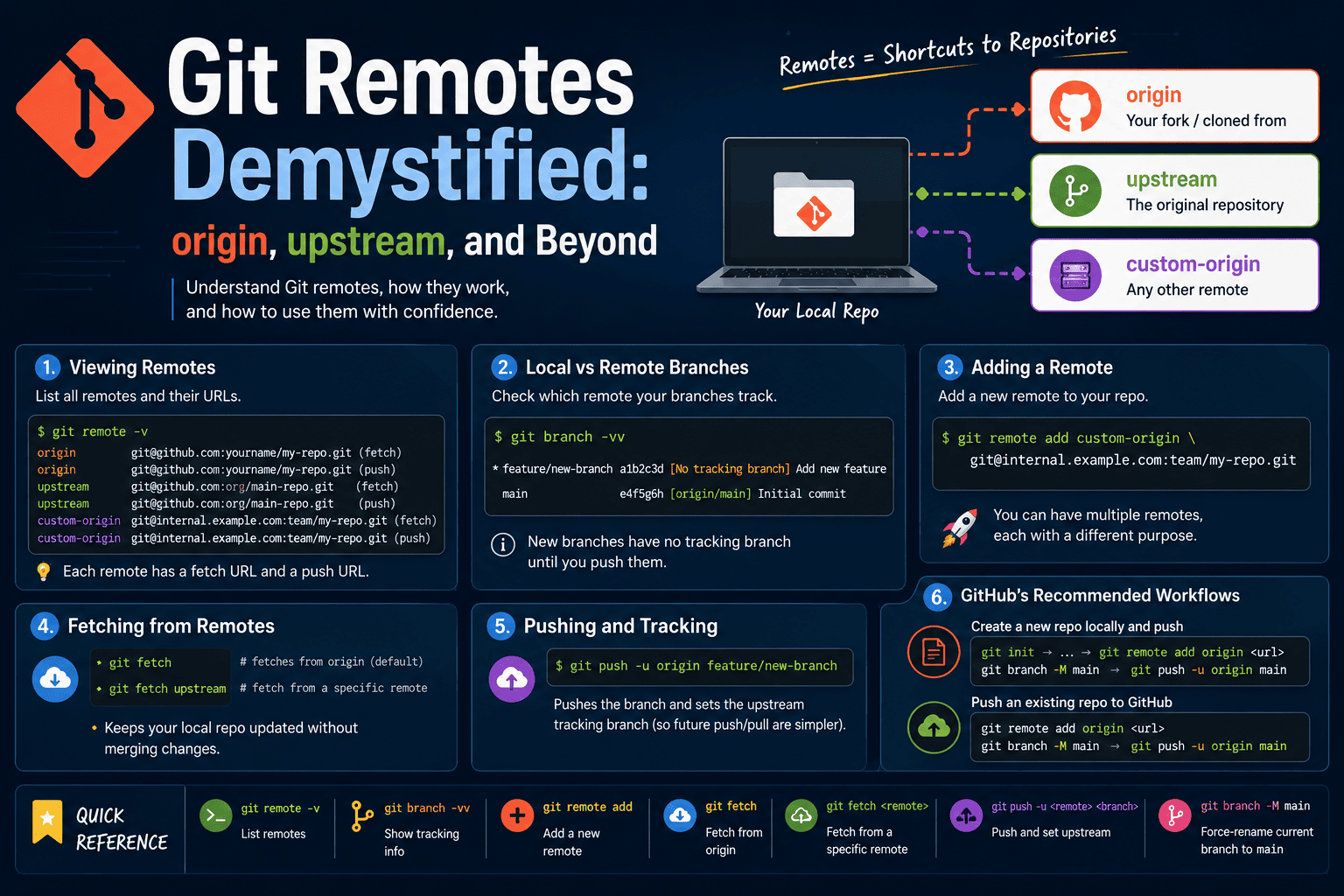
If you've ever stared at a git push command and wondered why it says origin, or got confused about what upstream means after forking a repo — you're not alone. Git's remote system is deceptively simple once you understand the mental model, but the defaults and conventions can make it feel like magic (or mystery).
This post breaks down exactly what Git remotes are, how they get created, how to inspect them, and how to work with them confidently. Keep this as a reference for the next time you hit a wall.
What Is a Remote?
- A remote is simply a named alias pointing to a repository URL — the place where your Git repository actually lives (GitHub, GitLab, a private server, etc.).
- Instead of typing out a full URL every time, Git lets you reference it by a short name like
origin,upstream, or any custom name you choose. - You can have multiple remotes in a single local repository, each pointing to a different URL.
origin and upstream — Conventions, Not Magic
These two names are not special Git keywords — they are just widely adopted conventions:
origin— The default remote name Git assigns automatically when you rungit clone. It points to the repository you cloned from.upstream— A conventional name used to refer to the original repository when you've cloned a fork. Git does not create this automatically; you add it manually (more on this below).
Cloning a regular repo
git clone git@github.com:someuser/some-repo.git
Git automatically creates one remote:
| Name | Points To |
|---|---|
origin |
git@github.com:someuser/some-repo.git |
Cloning a forked repo
When you fork a repo and then clone your fork, Git still only creates origin (pointing to your fork). You manually add upstream to track the original:
git remote add upstream git@github.com:org/original-repo.git
| Name | Points To |
|---|---|
origin |
Your fork on GitHub |
upstream |
The original repo you forked from |
Note: Git does not automatically add an
upstreamremote when you clone a fork. You need to add it manually usinggit remote add.
Viewing Your Configured Remotes
To see all remotes and their URLs, run:
git remote -v
Example output:
origin      git@github.com:yourname/my-repo.git (fetch)
origin      git@github.com:yourname/my-repo.git (push)
upstream    git@github.com:org/main-repo.git (fetch)
upstream    git@github.com:org/main-repo.git (push)
custom-origin  git@internal.example.com:team/my-repo.git (fetch)
custom-origin  git@internal.example.com:team/my-repo.git (push)
Each remote shows two entries — one for fetch and one for push. These can technically point to different URLs, but they are usually the same.
How git fetch Uses Remotes
- When you run
git fetchwithout arguments, Git usesoriginby default — it's equivalent to runninggit fetch origin. - To fetch from a specific remote, pass its name explicitly:
git fetch upstream.
Local Branches vs. Remote Tracking Branches
When you create a new branch locally, it exists only on your machine and has no remote tracking branch yet:
git checkout -b feature/new-branchTo check which remote each of your local branches is tracking, run:
git branch -vvExample output:
* feature/new-branch  a1b2c3d [No tracking branch] Add new feature
  main                e4f5g6h [origin/main] Initial commit
Adding a New Remote
You can add as many remotes as you need:
git remote add <remote-name> <remote-repo-url>
Example:
git remote add custom-origin git@internal.example.com:team/my-repo.git
Pushing a Branch to a Remote
To push a local branch to a remote and set it as the tracking branch (so future git push/git pull work without specifying the remote):
git push -u <remote-name> <branch-name>
The -u flag stands for --set-upstream — it links your local branch to the remote branch so you don't have to specify the remote again.
Starting Fresh: What GitHub Tells You to Run
When you create a new repository on GitHub, it gives you these two common workflows:
Create a new repo locally and push to GitHub
echo "# my-project" >> README.md
git init
git add README.md
git commit -m "first commit"
git branch -M main
git remote add origin https://github.com/yourname/my-project.git
git push -u origin main
Push an existing local repo to GitHub
git remote add origin https://github.com/yourname/my-project.git
git branch -M main
git push -u origin main
What does
git branch -M maindo?It force-renames your current branch tomain. The-Mflag means "force rename" — it will rename even if a branch namedmainalready exists. GitHub's default branch ismain, so this ensures your local branch name matches before pushing.
Quick Reference
| Command | What It Does |
|---|---|
git remote -v |
List all remotes with their URLs |
git branch -vv |
Show which remote each local branch tracks |
git remote add <name> <url> |
Add a new remote |
git fetch |
Fetch from origin (default) |
git fetch <remote> |
Fetch from a specific remote |
git push -u <remote> <branch> |
Push and set upstream tracking |
git branch -M main |
Force-rename current branch to main |