Whether you are launching a new mobile app or managing a global website, Google Analytics 4 (GA4) uses a unified Property model to help you understand your users across platforms.
Below is a simple guide to structuring your account and getting your data flowing.
1. Step-by-Step Process to Use a GA4 Property
Getting started with GA4 involves creating a central Property and then connecting Data Streams (the sources of your data).
1. Create the Property
- Log into Google Analytics.
- Navigate to Admin.
- Under the Property column, click Create Property.
- Provide:
- Property name (e.g., your business name)
- Reporting time zone
- Currency
2. Add a Data Stream
Once the property is created, you must choose where the data will come from.
- Go to Data Streams
- Click Add Stream
- Select one of the following:
- Web
- iOS
- Android
Each stream represents a platform sending analytics data.
3. Install the Tracking Code / SDK
For Websites
- Copy the Measurement ID (starts with
G-) - Add the
gtag.jstracking snippet inside the<head>section of your website.
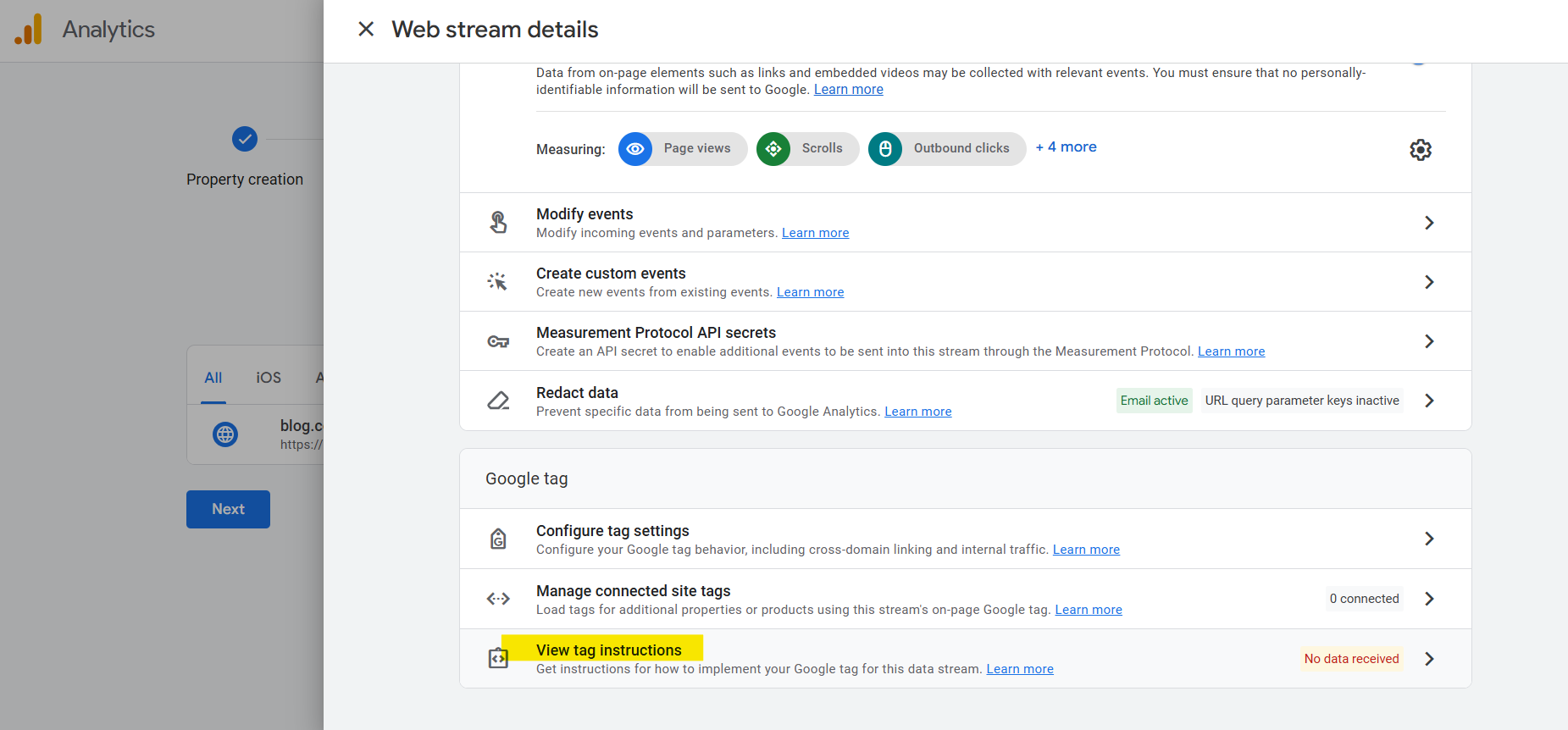
To learn more about the installation instructions, refer View tag instructions within the data stream details:
 #### For Mobile Apps
Download the configuration file:
google-services.json(Android)GoogleService-Info.plist(iOS)
Integrate the Firebase SDK into your mobile application.
4. Verify Data is Flowing
After installation:
- Visit your website or open the mobile app.
- Open the Realtime report in GA4.
- Confirm that user activity is appearing.
This ensures your integration is working correctly.
2. Can You Have Multiple Properties for Different Apps?
Yes. A single Google Analytics account can contain up to 2,000 properties.
This is useful when:
- You manage multiple products
- You run separate businesses
- Your applications do not share the same user base
Keeping them separated helps maintain clean analytics data.
3. How to Structure Different Apps and Websites
One of the most important decisions is choosing between Separate Properties and Multiple Data Streams.
- Separate Properties (Recommended for Unrelated Products):
- If you own a "Fitness App" and a separate "Cooking Website," keep them in different properties.
- This prevents your data from being mixed together, ensuring your conversion rates and audience metrics remain accurate for each specific business.
- Multiple Data Streams (Recommended for Cross-Platform Experiences):
- If your product exists as a Website, an iOS app, and an Android app, you should put them all under one property as three separate data streams.
- This allows GA4 to de-duplicate users, showing you a holistic "user journey" across devices.
4. Does GA4 Require Domain Verification?
Domain verification depends on the platform you are tracking.
- Mobile Apps:
- These do not require domain verification.
- Instead, they rely on your Bundle ID (iOS) or Package Name (Android) and the inclusion of the Firebase configuration file inside your app to prove ownership.
- Websites:
- For basic analytics tracking, traditional Search Console style verification is not required.
- However, you must configure Cross-Domain Measurement if your user journey spans multiple domains (e.g., from
mysite.comtocheckout.com). - You do this in Data Streams → Configure Tag Settings → Configure Your Domains to ensure GA4 treats them as a single session.
- Integrations: If you want to link your GA4 property to Google Search Console, you must be a verified site administrator for that domain.
Closing Thoughts
Structuring your GA4 properties and data streams correctly from the beginning can save a lot of confusion later. By grouping related platforms under a single property and separating unrelated products into different ones, you ensure that your analytics remains accurate and meaningful. Once the structure is set up properly, GA4 becomes a powerful tool for understanding user behavior, tracking conversions, and improving your product decisions based on real usage data.