If you've spent years working with Windows or Linux, the first thing you'll notice about macOS is that it feels... deceptively simple. You install an application by dragging an icon into the Applications folder, and somehow everything just works. There are no installation wizards, no Program Files (x86), no obvious registry, and no endless prompts asking where you'd like to install the software.
But beneath Finder's polished interface lies a Unix-based operating system with a surprisingly elegant filesystem. Once you understand how it's organized, many things - such as application installation, Homebrew, terminal commands, and system directories - suddenly make much more sense.
Let's take a tour.
Everything Starts at /
Like every Unix-based operating system, macOS has a single root directory:
/
This is the top of the filesystem hierarchy. Unlike Windows, there are no drive letters like C:\ or D:\. Every file, folder, disk, USB drive, or mounted image eventually becomes part of this single tree.
If you open Terminal and run:
cd /
ls -la
you'll see something similar to:
Applications
Library
System
Users
Volumes
bin
dev
etc
home
opt
private
sbin
tmp
usr
var
At first glance, it looks like every folder is equally important. In reality, some of these directories are actual folders, while others exist only for compatibility with older Unix software.
Not Everything You See Is Real
One of the first surprises for Linux users is that several familiar directories aren't real directories at all.
For example, you may expect /tmp to contain temporary files. Instead, if you inspect it:
ls -l /
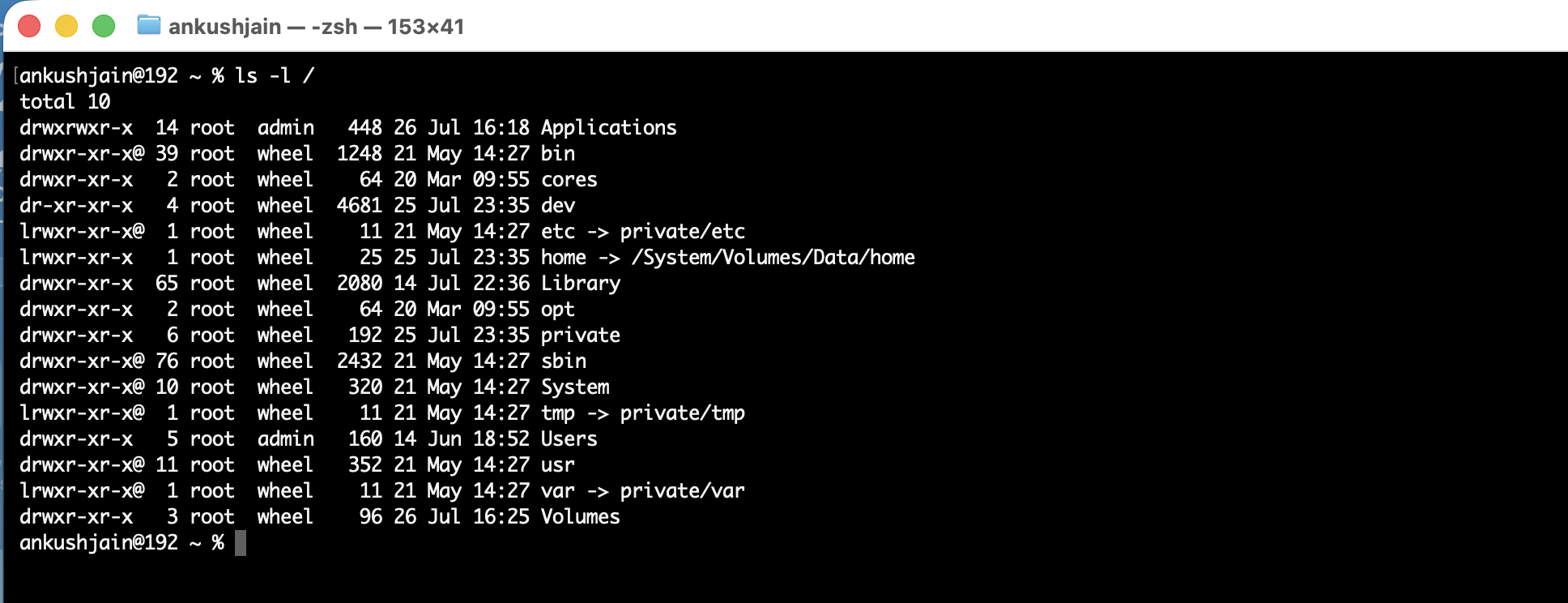 you'll discover:
tmp -> private/tmp
The same applies to:
/etc -> /private/etc
/var -> /private/var
These are symbolic links. They behave like shortcuts at the filesystem level. When software accesses /etc, it's actually reading files from /private/etc.
Apple keeps these symlinks largely for Unix compatibility, ensuring that software written decades ago continues to work without modification.
The Three Directories You'll Visit Most
Although the root contains many folders, you'll spend most of your time dealing with just three:
/Applications
/Users
/Library
Each serves a very different purpose.
/Applications: Where Your Apps Live
If there's one directory every Mac user recognizes, it's Applications.
This is where nearly every application you install ends up:
/Applications
├── Google Chrome.app
├── Visual Studio Code.app
├── Docker.app
├── Slack.app
└── Postman.app
But here's something many new Mac users don't realize:
A .app file isn't actually a file.
It's a directory disguised as a single application.
If you right-click an application and choose Show Package Contents, you'll discover an entire directory structure hidden inside.
For example:
Visual Studio Code.app
└── Contents
    ├── Info.plist
    ├── MacOS
    ├── Resources
    └── Frameworks
The executable binary lives inside:
Contents/MacOS/
For Visual Studio Code, the actual executable is something like:
/Applications/Visual Studio Code.app/Contents/MacOS/Electron
This is the binary that launches when you double-click the app icon.
Unlike Windows, where applications often scatter files across multiple directories, macOS encourages applications to bundle almost everything together. Icons, libraries, frameworks, translations, configuration defaults, and the executable itself all live inside the .app bundle.
That's why uninstalling many Mac applications is as simple as dragging them to the Trash.
So What Does a .dmg Actually Do?
Another common misconception is that applications somehow "run from the DMG."
They don't.
A .dmg file is simply a disk image, similar in concept to an ISO image.
When you double-click a DMG, macOS mounts it as a temporary volume under:
/Volumes
For example:
/Volumes/Google Chrome/
Inside you'll usually see something like:
Google Chrome.app
Applications
The familiar drag-and-drop installation is literally just copying the application bundle from the mounted disk image into /Applications.
Once the copy finishes, you can eject the DMG and even delete the downloaded .dmg file. The application now lives entirely in /Applications.
The DMG was simply a delivery mechanism.
Where Are the Actual Binaries?
Applications aren't the only executables on your Mac. macOS also contains thousands of command-line tools.
If you've ever typed:
ls
cp
mv
grep
curl
ssh
those commands come from directories such as:
/usr/bin
These are system binaries provided by Apple.
Third-party command-line software is usually installed elsewhere.
On Apple Silicon Macs, Homebrew installs software into:
/opt/homebrew
while Intel Macs traditionally use:
/usr/local
This separation keeps Apple's system tools isolated from user-installed software, making upgrades much safer.
/Users: Your Personal Space
Every user on the Mac gets their own home directory.
For example:
/Users/ankush
Inside you'll find the folders everyone recognizes:
Desktop
Documents
Downloads
Movies
Music
Pictures
Library
This is where your personal files live.
More importantly, every application stores your personal preferences, caches, logs, and user-specific data inside:
~/Library
The tilde (~) is simply shorthand for your home directory.
Finder hides this folder by default because most users never need to touch it, but developers end up visiting it frequently while debugging applications or clearing cached data.
/Library: Shared Resources
Don't confuse /Library with ~/Library.
The first belongs to the entire machine.
The second belongs only to your account.
The system-wide Library contains things like:
Fonts
Application Support
Audio Plug-ins
Launch Daemons
Shared Preferences
Applications that need resources available to every user often place them here.
/System: Apple's Territory
If /Applications belongs to you, /System belongs to Apple.
This directory contains the operating system itself:
/System
├── Library
├── Applications
├── Frameworks
└── Extensions
Modern versions of macOS protect this directory using System Integrity Protection (SIP) and a sealed system volume.
In practice, this means you can't accidentally delete Safari, overwrite critical system libraries, or modify core operating system files—even with administrator privileges in many cases.
It's one of the reasons macOS is significantly harder to break than older desktop operating systems.
/Volumes: Every Disk Appears Here
Whenever you plug in a USB drive, mount a network share, connect an external SSD, or open a DMG, macOS mounts it under:
/Volumes
For example:
/Volumes
├── Macintosh HD
├── Samsung SSD
├── Backup Drive
└── Google Chrome Installer
Even the DMG you downloaded earlier appears here temporarily.
Once you eject it, its directory disappears automatically.
The Hidden Split You Never Notice
Starting with macOS Big Sur, Apple quietly introduced a clever architecture.
The operating system actually lives on two separate APFS volumes:
System Volume (read-only)
Data Volume (read-write)
Finder merges these together so they appear as one seamless filesystem.
When you browse:
/
you never realize that:
/Systemcomes from the read-only system volume./Applications,/Users, and/Librarylive on the writable data volume (though some Apple-supplied apps are stored on the system volume).
This design dramatically improves security while remaining completely transparent to the user.
Why macOS Feels Different from Windows
Windows applications are traditionally installed into Program Files, create registry entries, scatter DLLs into shared directories, and often require dedicated uninstallers.
macOS takes a different philosophy.
A typical application is a self-contained bundle. Installation is often nothing more than copying a directory. Uninstallation is frequently just deleting that directory. User preferences remain in ~/Library, while the operating system stays isolated in its own protected area.
The result is a cleaner filesystem, fewer dependency issues, and a surprisingly portable application model.
Final Thoughts
At first, the macOS filesystem can seem unusual, especially if you're coming from Windows. The idea that an application is really just a directory, that a DMG is only a temporary mounted disk, or that /etc is actually a symbolic link to another location feels unfamiliar.
But once you understand the underlying structure, the design starts to feel remarkably logical.
Everything has a clear responsibility:
/Applicationsstores installed applications./Usersholds personal files and user-specific settings./Librarycontains shared resources./Systemhouses the operating system./Volumesis where every mounted disk appears./usr/binprovides Apple's command-line tools./opt/homebrew(or/usr/localon Intel Macs) is where third-party developer tools typically live.
The next time you drag an app from a DMG into the Applications folder, you'll know exactly what's happening behind the scenes—and why macOS makes it look so effortless.